

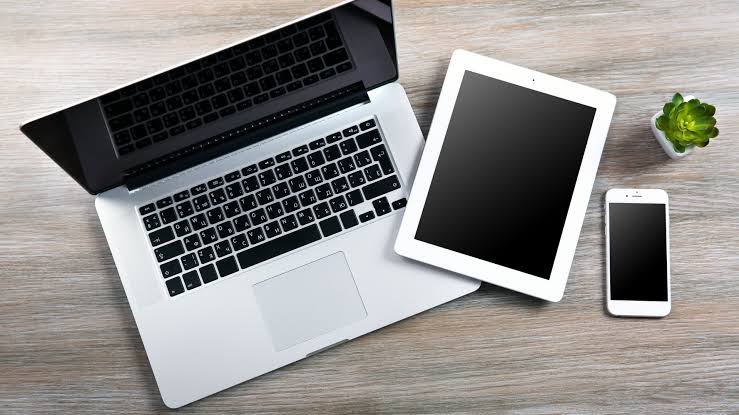
Our devices go everywhere with us. We carry our phones in our pockets, use tablets on the sofa, work on laptops at cafés and take them along when we travel. Over time, fingerprints, dust, cluttered storage and unused apps build up.
A little regular maintenance can keep your devices cleaner, easier to use and better organized. The good news? You do not need special equipment or technical skills. Here is a simple guide to cleaning both your devices and your digital life.
1. Start with the screen
Whether you use a laptop, iPad or smartphone, begin by switching it off and disconnecting any cables. Use a soft, lint-free microfiber cloth to wipe away fingerprints and dust.
For stubborn marks, follow the manufacturer’s cleaning instructions. If the instructions permit a damp cloth, moisten it lightly with water. Never spray liquid directly onto a screen or allow moisture to enter openings.
Avoid paper towels, rough fabrics, household glass cleaners and abrasive products, which may damage screen coatings. Apple provides specific cleaning guidance for its devices, so check the instructions for your particular model.
2. Give your laptop keyboard some attention
Laptop keyboards collect crumbs, dust and oils from our fingers. Turn off the laptop and disconnect the charger before cleaning. Gently wipe the keys and surrounding surfaces with a soft, dry cloth. If needed, use a cloth that is only slightly damp, taking care not to let moisture seep between the keys.
Do not pry off laptop keys or dismantle the keyboard unless the manufacturer specifically advises it. If debris is trapped inside, consult the manufacturer’s cleaning instructions or a qualified technician.
If you use an external keyboard, the same basic approach applies.
3. Do not forget your phone and tablet
Our phones and tablets are handled throughout the day, making them easy to overlook when cleaning. Wipe the screen and exterior gently, following the guidance for your device. Remove the case occasionally and clean it separately according to its material and manufacturer’s instructions. Allow everything to dry completely before putting the case back on.
Pay attention to the areas around the camera and buttons, but do not push pins, toothpicks or other objects into charging ports. Avoid compressed air unless the device manufacturer specifically recommends it.
If your phone or tablet has been exposed to food, makeup or other sticky substances, clean it promptly using the approved method.
4. Clear out digital clutter
A clean device is not just about its appearance. Downloads, duplicate photos, old videos and apps you no longer use can take up valuable storage space.
On an iPhone or iPad, go to Settings → General → iPhone Storage or iPad Storage to see which apps and files use the most space. On Android, open Settings → Storage. Menu names may vary by device.
Review your storage and remove items you no longer need. Start with downloaded films, old documents, duplicate photographs and apps you have not used for months. Back up important photographs and files before deleting them, and make sure you understand whether deleting a synced item will also remove it from your cloud storage.
On a laptop running Windows 11, Settings → System → Storage provides tools to review space usage and remove unnecessary files. Storage Sense can automate some routine clean-up tasks.
5. Tidy up your browser
Too many open tabs can make it difficult to find what you need. Close pages you no longer use and bookmark useful websites for later.
If a website is behaving strangely, clearing its cached files may help. However, clearing all browsing data can also remove cookies and sign you out of websites. Read the options carefully before confirming.
You do not need to clear your browser history or cache every day. Focus on solving actual problems and keeping your browser organised.
6. Review your apps and notifications
Take a few minutes to look through the apps on your phone, tablet or laptop. Uninstall apps you no longer need, review which apps have permission to access your location, camera, microphone and contacts, and turn off notifications that interrupt you unnecessarily.
Keep your operating system and apps updated. Updates can provide important security fixes as well as improvements and new features.
Avoid installing unfamiliar “cleaner” apps that promise dramatic speed improvements. Built-in storage tools are usually the best place to start, and you should never give an unknown app unnecessary access to your personal data.
7. Protect your photographs and important files
Our devices often contain years of family photographs, personal documents, work files and messages. Before undertaking a major clean-up, make sure your important data is backed up.
You can use a trusted cloud service or an external drive, depending on your needs. Check that the backup has completed successfully and that you can access the files before deleting the originals.
It is also a good time to review your passwords, enable two-factor authentication where available and check that your account recovery details are current.
8. Keep your accessories clean
Earbuds, headphones, charging cables, laptop bags and phone cases are part of our everyday digital lives too. Wipe compatible hard surfaces with a soft cloth, and follow the manufacturer’s instructions for earbud tips, fabric covers and other materials.
Keep charging connectors dry and avoid pulling cables by the wire itself. If a cable is frayed, a charger is damaged or a device becomes unusually hot, stop using it and arrange a suitable replacement or professional assessment.
A simple digital clean-up routine
You do not have to do everything in one sitting. A few small habits can make a difference.
- Weekly: Wipe your phone screen, remove obvious digital clutter and close unnecessary browser tabs.
- Monthly: Review storage, unused apps, notifications and app permissions.
- Every few months: Check your backups, update your devices and clean cases, keyboards and accessories.
- When needed: Follow the manufacturer’s instructions if a device becomes dirty, overheats or starts behaving unusually.
A clean digital life is about more than shiny screens. It means having devices that are pleasant to use, enough space for what matters and confidence that your important information is protected.
Whether your everyday companion is a laptop, an iPad or simply your smartphone, a little care goes a long way.